When walking a Site and doing a Survey, it is important to that all your survey data is synced successfully to the cloud.
Tip: Sync the sites you need while on a secure network connection before leaving for a site walk.
Downloading Sites & Surveys to the app:
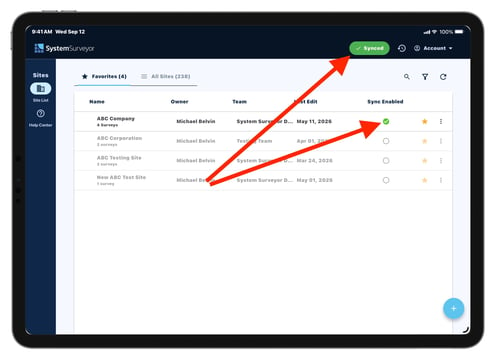
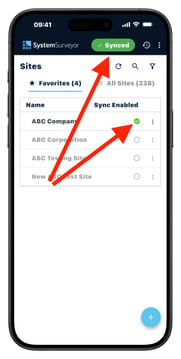
- Tap the circle under the Sync Enabled column to enable Sites for syncing.
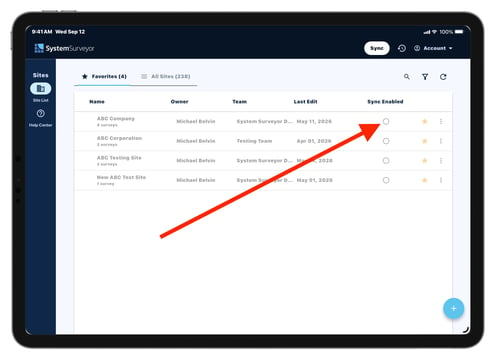
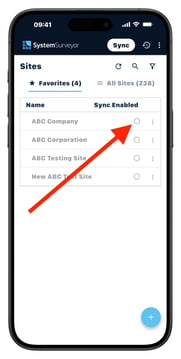
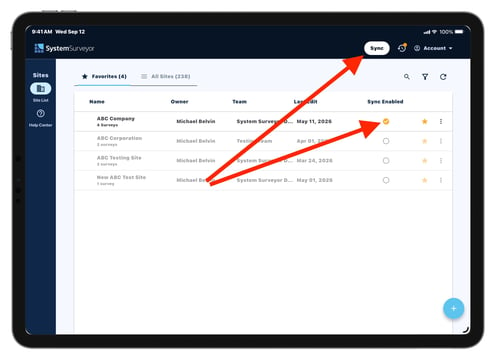
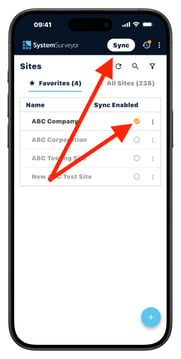
- Tap the Sync button in the top right hand corner to download the latest Survey changes for the enabled Sites from the web.
- The orange status badge indicates there are pending changes waiting to be synced.
Note: Only 25 Sites can be synced to a device at a time.
Syncing a Site will sync all surveys within a site. A sync will upload the latest changes on the app to the web and download any new survey changes from the web.
- Once the sync is complete, the Sync button will turn green and all surveys for any sync enabled Sites will be downloaded to the app.
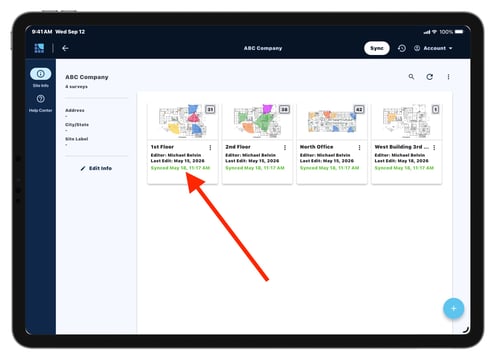
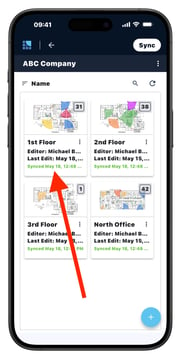
- The Surveys within a site will indicate the last time they were synced.
- Users can then work on the surveys offline.
Upload updated Surveys to the web:
- Once a survey is edited in the app, the survey thumbnail will display Pending Upload.
- Tap the Sync button to upload those Survey changes to the web.
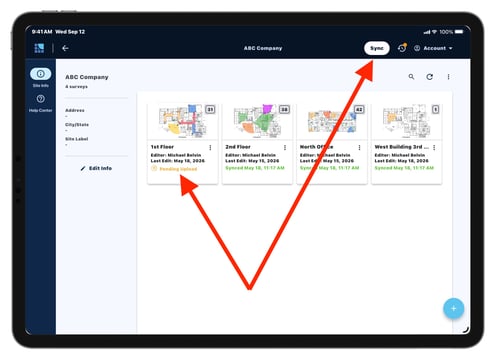
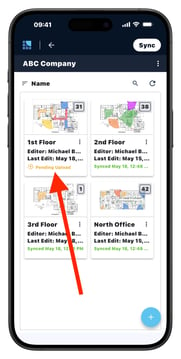
- All Surveys that have pending changes will be synced between the app and the web.
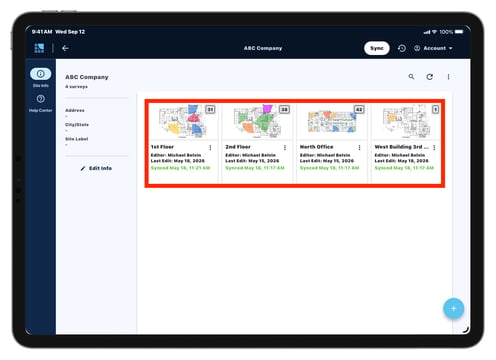
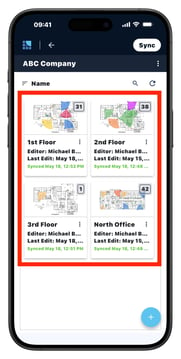
- Tapping Sync includes all Surveys within sync enabled Sites, unless Selective Sync is enabled.
- Check out our guide on the Selective Syncing Feature here.
- If there are surveys on other Sites with a Pending Upload status, those changes will also be synced.
- This also includes syncing any new changes from Surveys that were recently edited on the web.
Note: While on site, save your work to the device and then sync to the cloud once connected to a secure network.