Jump To:
AI Notetaker can be accessed from any Survey on the System Surveyor tablet app.
Starting a Recording
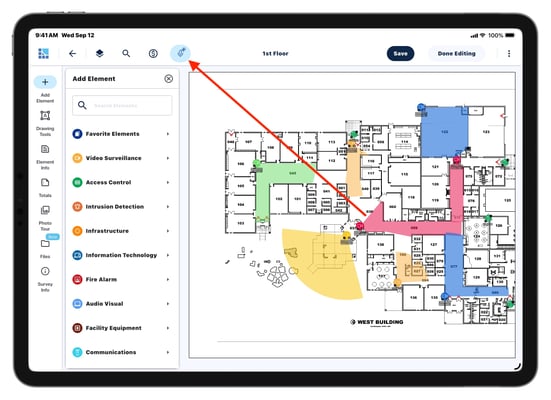
- Upon opening a Survey, notice that the upper left toolbar now includes a
 button. Tap this button to begin recording.
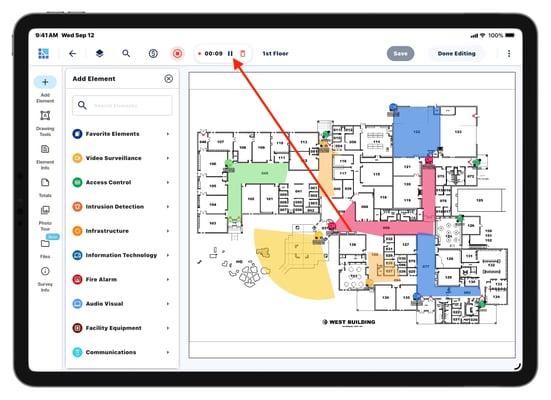
- Tap the
 button to pause the recording at any time and resume by tapping the
  button.
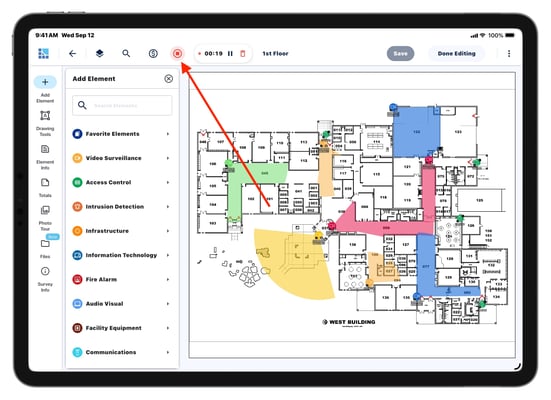
- When you are finished recording, tap the
 button. This will store the recording in the survey.
Accessing Recordings
-
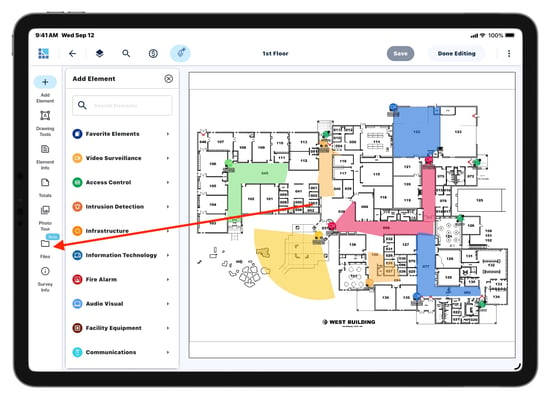
Access recordings by tapping the Files button on the left side bar.
-
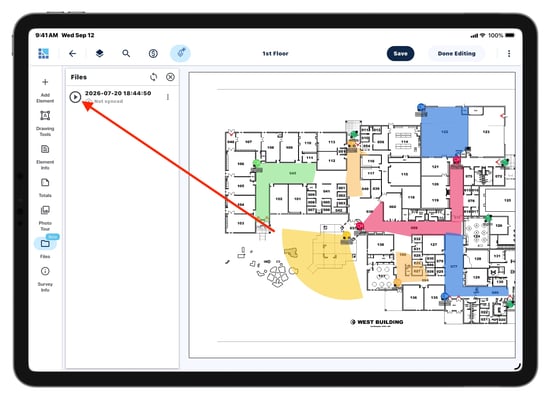
Tap the
 button next to the recording's timestamp to listen to the recorded audio.
-
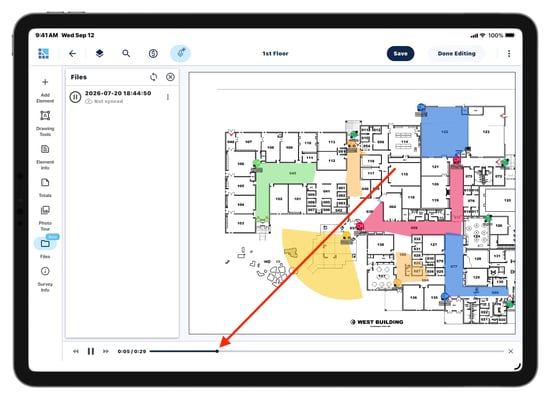
Move backward or forward in the recording with the playhead at the bottom of the screen.
Generating Summaries & Transcripts
To generate a summary and transcript of your recording, the Survey will need to be synced to the web.
-
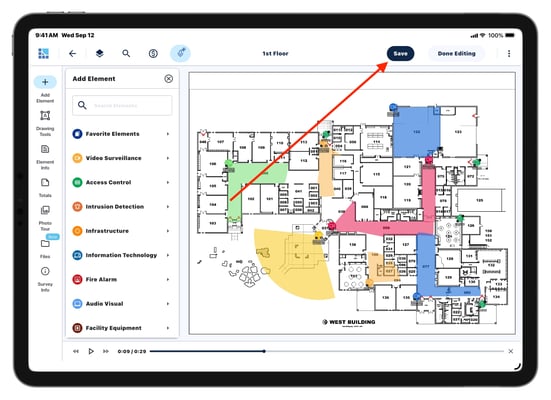
When you are finished recording, save the Survey by tapping the Save button.
-
Navigate back to the Site Overview screen and tap the Sync button to sync the Survey.
- This will sync the recordings(s) on the Survey to the cloud so a summary & transcript can be generated.
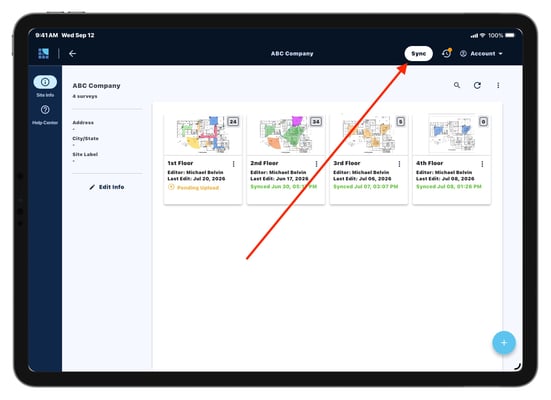
Note: It may take a few minutes for the summary & transcript to become available in the Survey after the sync is complete.
- After the sync is complete and the recording has been processed, access the Summary & Transcript from the Files tab.
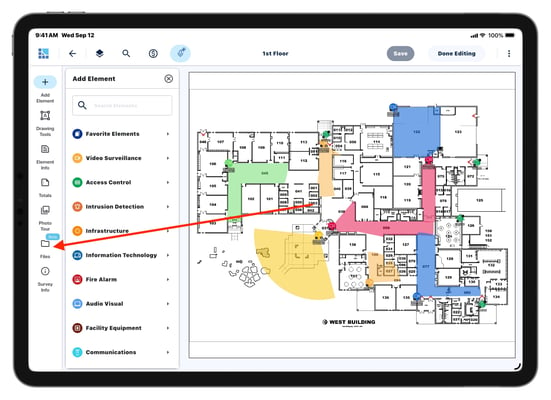
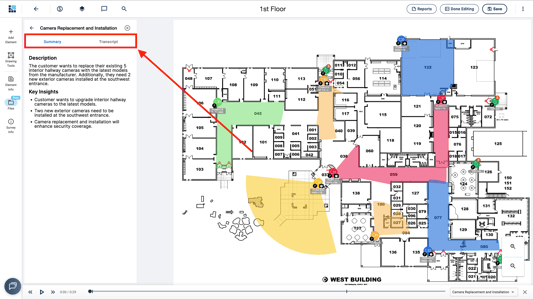
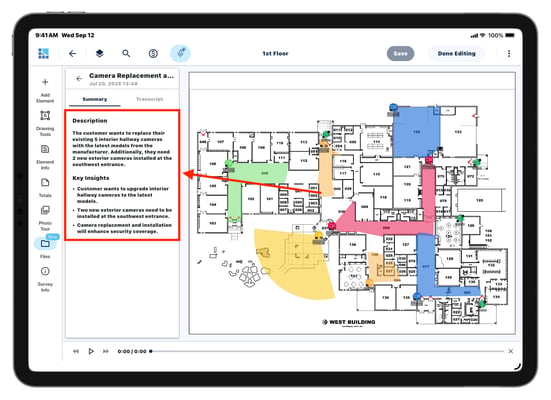
- Tap on the title of the recording to open the recording description and summary.
- This will include key insights based on the contents of the recording.
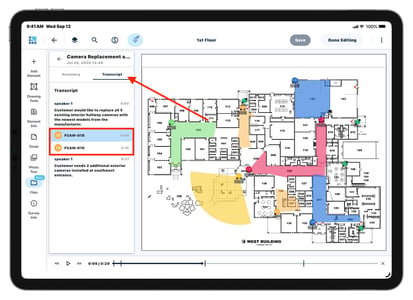
- Tap the Transcript tab to view the full transcript of the recording.
Pro Tip: While playing the recording, the timeline will display markers indicating when you tap on specific Elements while recording.
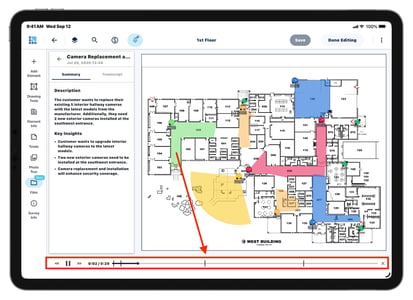
Check the Transcript tab for timestamps of the different elements selected during recording.
Accessing on the Web
AI Notetaker recordings, summaries & transcripts can also be accessed from the web after syncing from the tablet app.
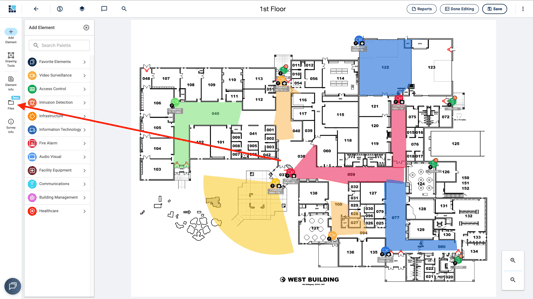
- Navigate to the Survey from the System Surveyor web platform and click the Files button.
- Play the recording by clicking the
 button, or access summaries & transcripts by clicking the title of the recording.
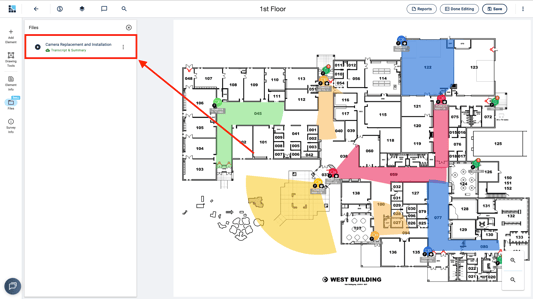
- Toggle between the recording summary and the full transcript via the Summary and Transcript tabs.