Cables Report
Create a PDF or Excel spreadsheet report that compiles and measures your cable runs.
First, to ensure that your cable runs will populate in the Cables Report, be sure to add cables to the cable paths on your survey by opening the Element Info panel and clicking the "Add Cable" option under the Functional tab:
- This is where you can add your cable type, A side term and Z side term, as well as any additional detail:

Reports are accessible from both the Site Level and Survey Level
To access Reports from the Site Level:
-
Click the "Reports" button at the top of the Site Overview screen:

- This will take you to the Reporting section, where you can select Surveys to report on:

To access the Cables Report from the Survey level:
- Click the Reports button at the top of the edit screen:

- This will take you to the reporting section, where you will see the five report types:

- Click the Cables tab:

- Click the Cables tab:
- If you wish to include multiple surveys in this report, click the Select Surveys button to choose the surveys you would like to include:

- You can select up to 10 surveys for a single report:

- You can select up to 10 surveys for a single report:
- In the Cables report, you will see that the report contains two default templates:
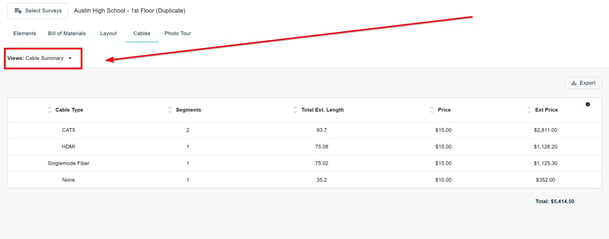
- Cable Summary
- Cable Details

- The Cable Summary gives an overview of the different Cable Paths in your survey, including the number of cables per element, price per foot, and total price:

- The Cable Details provides a breakdown of each cable type including attached elements and connections:

- You can customize the report further with the Filters button, where you filter the report by Installation Status:

With your report customized to your liking, you can create a new template to save your current filters for future use
- To do this, click the Save button, then Save As:

- Give your template a name and click Save:

- You and your team will then be able to access your new template from the template dropdown:

- To delete a template, click the minus button next to the template name:

Note: Only admin users can create or delete templates.
- When you are finished with your report, click the Export button to download the individual report as a PDF, or as an Excel spreadsheet:

- If you wish to combine multiple report types into one document, you can do so with the Combined Reports option:

Tip: Check out our guide on Combined Reports for a detailed breakdown of this feature.