
Tip: To add Manufacturer Element Profiles to your team, skip the import process altogether by using our built-in Manufacturer Library. Check out our guide to learn more: Adding Manufacturer Profiles.
Jump to:
Importing Element Profiles:
1. Navigate to the Element Profile Settings:
-
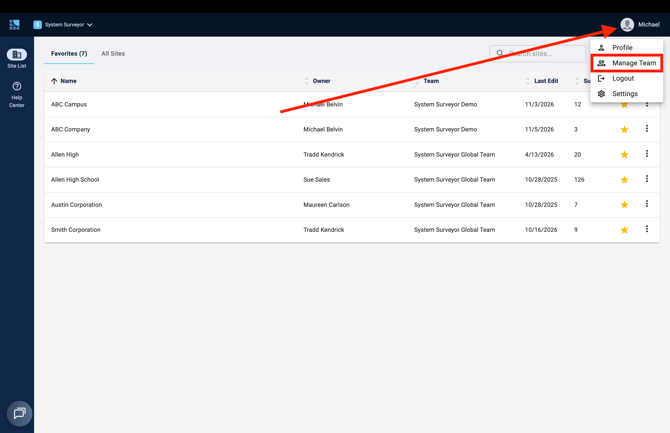
Click on the User Icon in the upper right corner of your Site List and select Settings
-
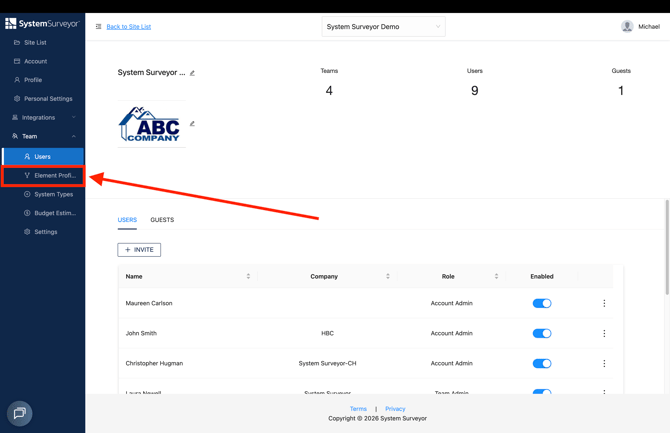
Select the Element Profile tab on the left-hand side
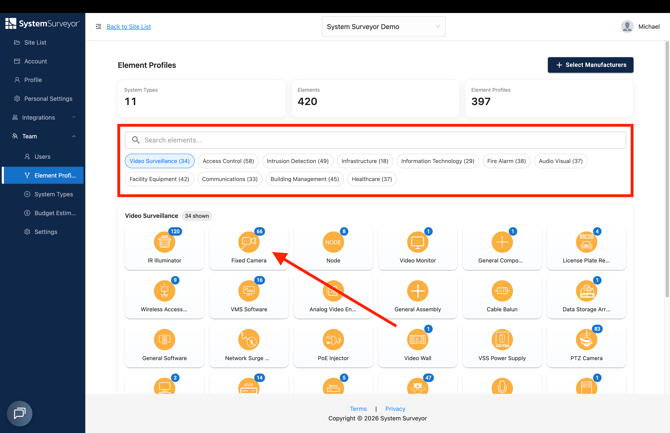
- Select a System Type and choose the Element you wish to import to
2. Choose an Import Type:
- Import & Add will combine the Element Profiles in your import file with the ones that already exist in your account for the selected Element:
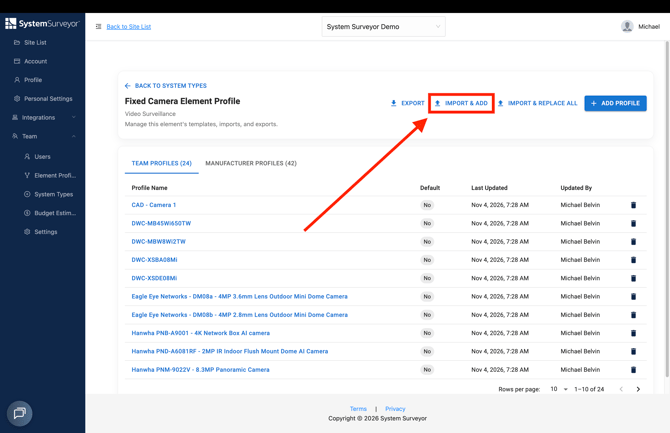
- Use this when adding new Element Profiles to the existing ones in your account
- Select the Element Profile Excel sheet from your local files
-
- Review the Element Profiles & Accessories that will be added, and confirm by clicking Import:
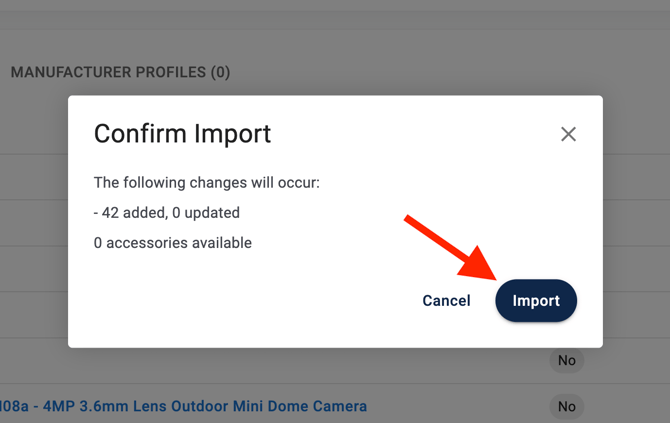
- Review the Element Profiles & Accessories that will be added, and confirm by clicking Import:
- Import & Replace All will replace all of the Element Profiles that currently exist for the selected Element with the Element Profiles in your import file:
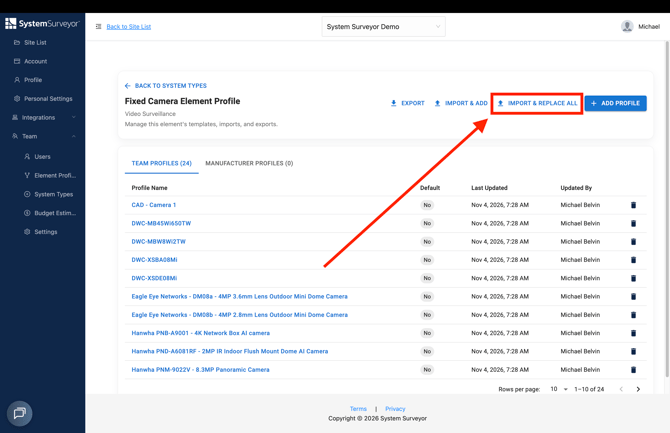
- Use this option only if you intend to clear out all your existing Element Profiles for the selected Element and replace them with the ones in your import file.
- This is ideal after exporting & modifying your existing Element Profiles in Excel
-
- Review the changes that will take place and confirm by clicking Import
Exporting & Modifying Element Profiles in Excel:
- Element Profiles can be exported to Excel to update existing Element Profiles in bulk, or add custom Element Profiles that are not available in the Manufacturer Catalog.
1. Export the Element Profiles:
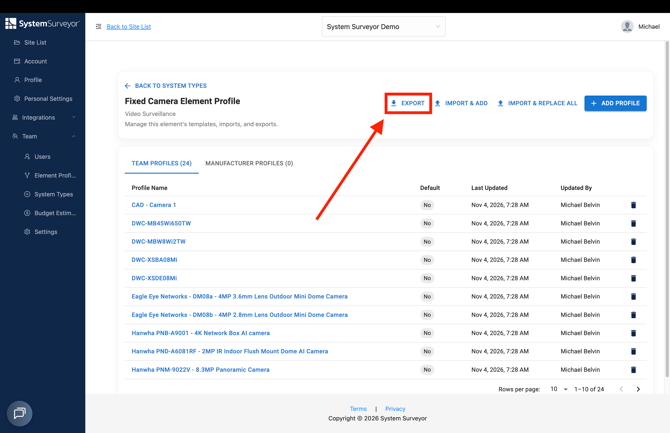
- Click the Export button to download the Excel file to your local files:
- Open the Excel file to edit existing Element Profiles:
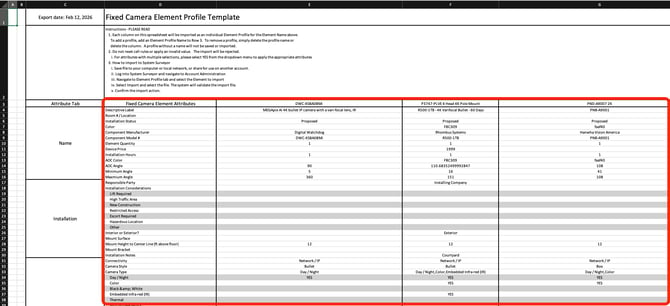
- Open the Excel file to edit existing Element Profiles:
-
- Or add new ones to the next available row:
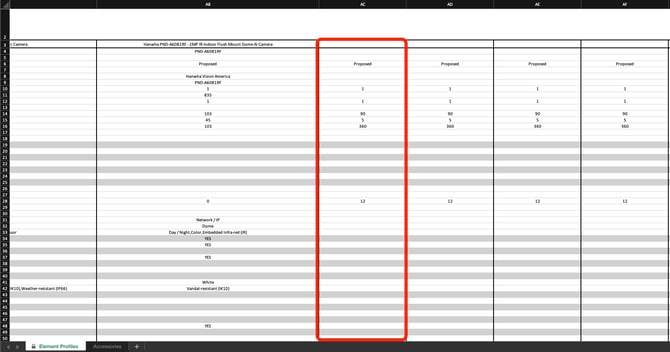
- Or add new ones to the next available row:
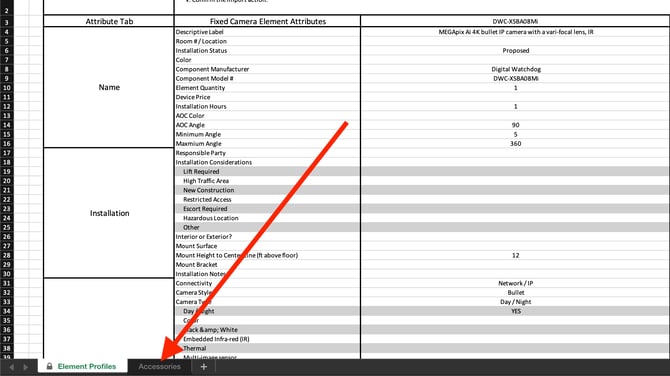
- You can also add new Accessories from the Accessories tab:
- Add your new Accessory to the next available row:
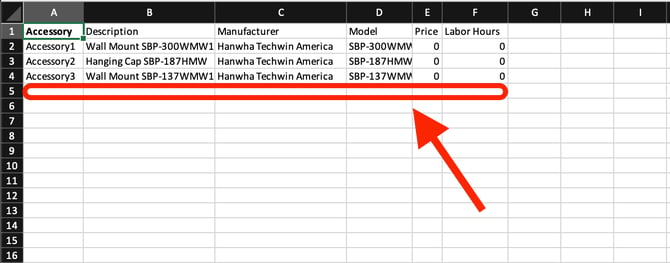
- Add your new Accessory to the next available row:
- When finished, save the Excel file
2. Import the Excel file back into System Surveyor:
- If existing Element Profiles have been modified, choose Import & Replace All to avoid creating duplicates
- Review the changes that will be made and confirm by clicking Import
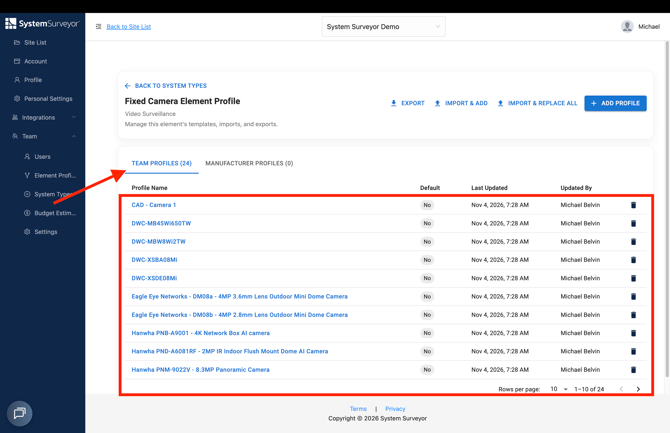
- Refresh the page to reflect your updated Element Profiles under the Team Profiles tab
Reminder: Use our built-in Manufacturer Library to add Manufacturer Profiles to your team.
Note: Only Admin Users will be able to import & export Element Profiles.