
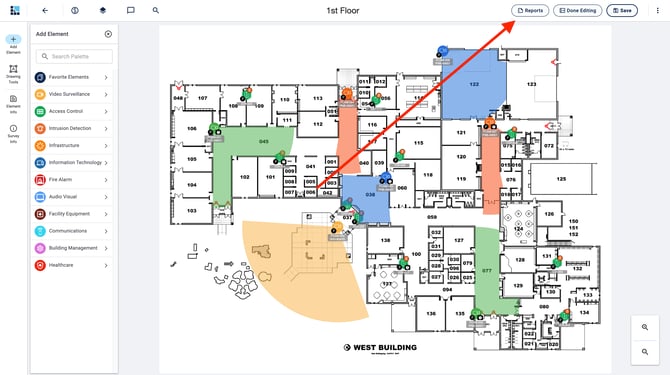
- Navigate to the Reports section by clicking the "Reports" button at the top of the edit screen:
- Templates can be applied in all 5 report types:
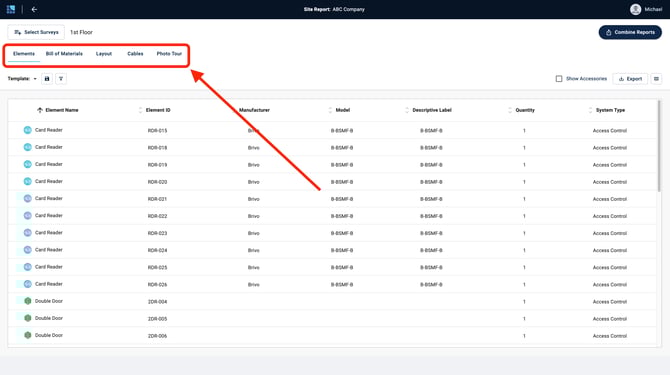
- Templates can be applied in all 5 report types:
- Each report has its own filtering and customization options, which can be saved as a Template:
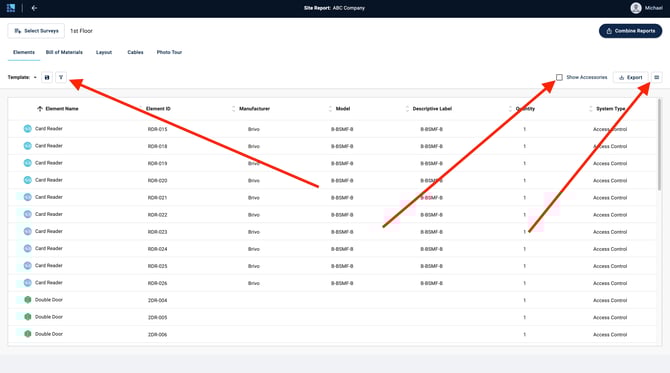
- For example, in the Elements Report, use the Filter option to refine the information that appears in the report:
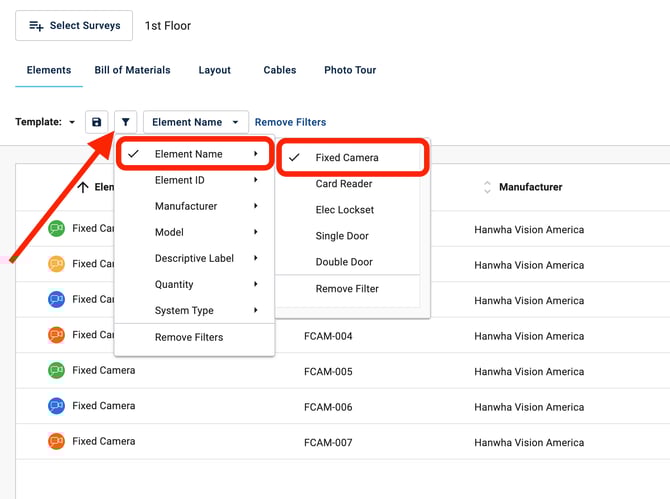
- For example, in the Elements Report, use the Filter option to refine the information that appears in the report:
-
- Use the
 button to add or remove columns in your report: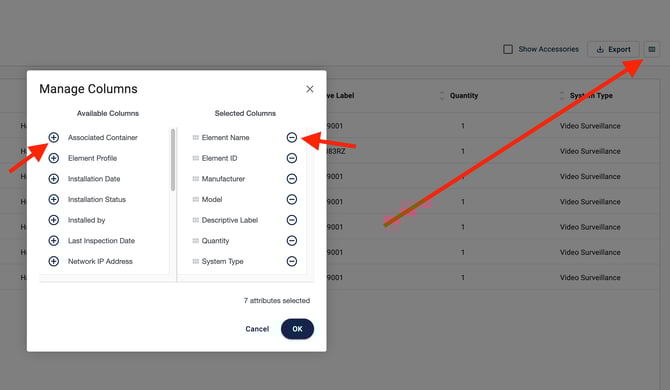
- Click and drag the
 icon to reorganize your columns: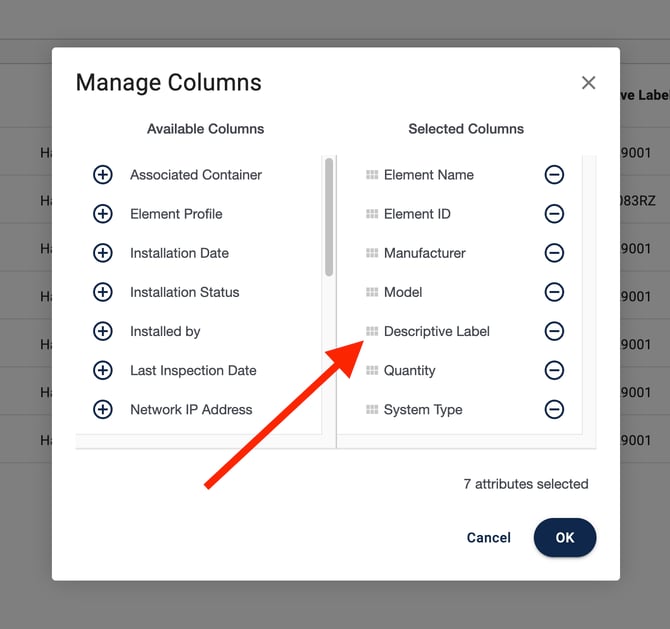
- Use the
- Save your report configuration as a Template via Save --> Save As:
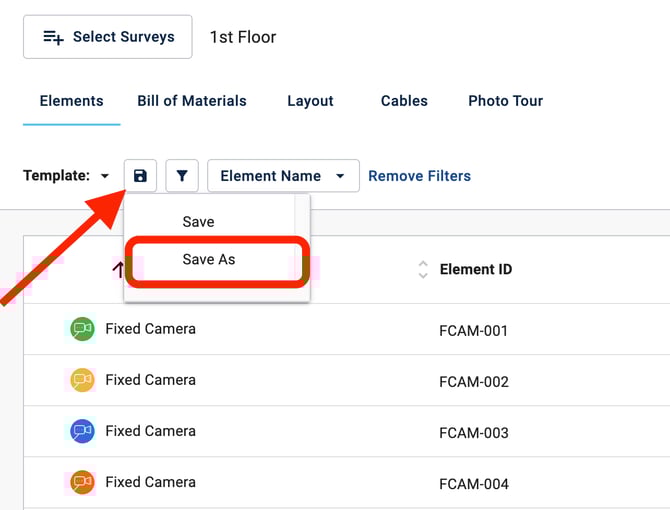
- Name the Template and click Save:
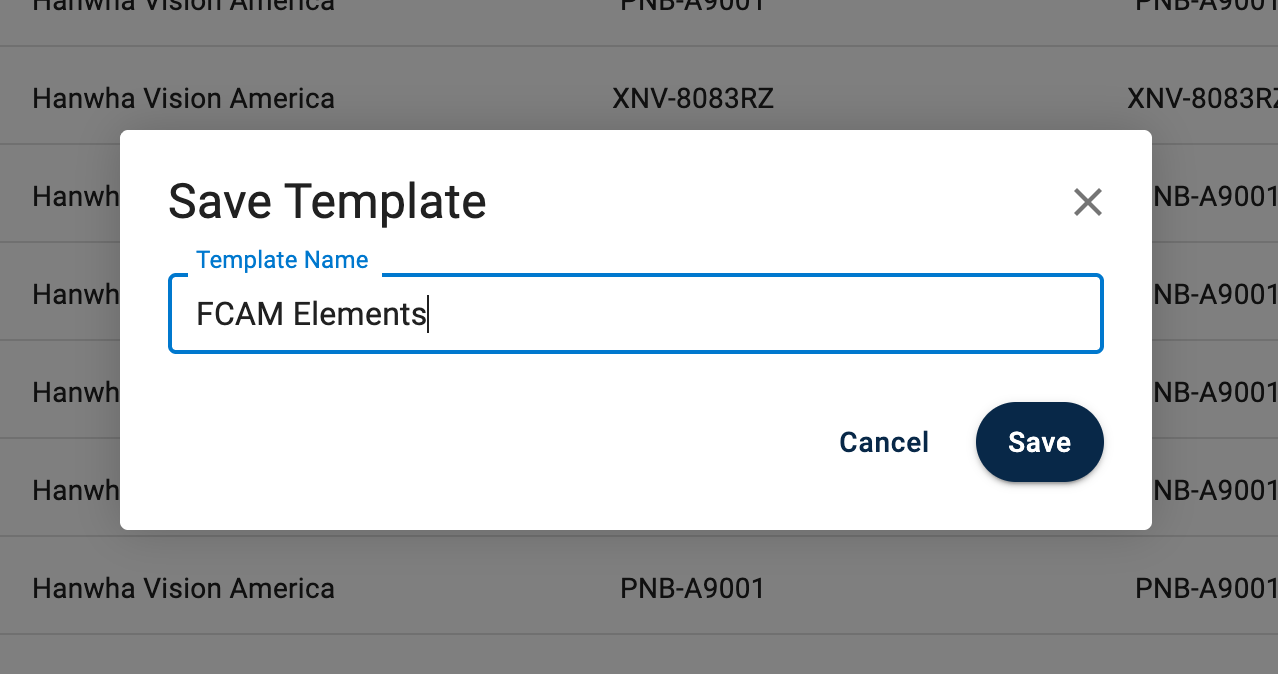
- Name the Template and click Save:
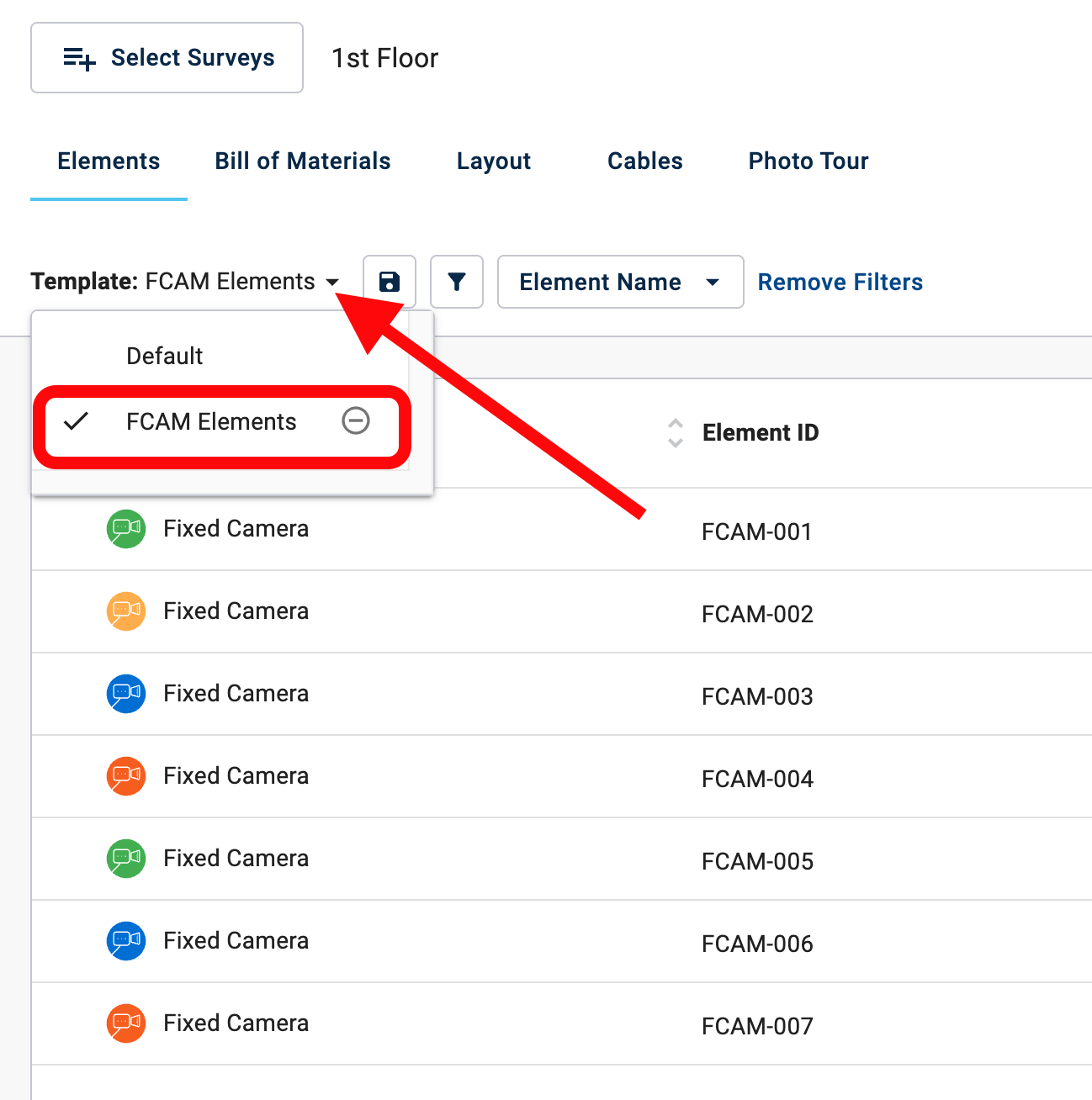
- View and select your created Templates from the Template dropdown:
- Click the
 button next to a Template name to delete it: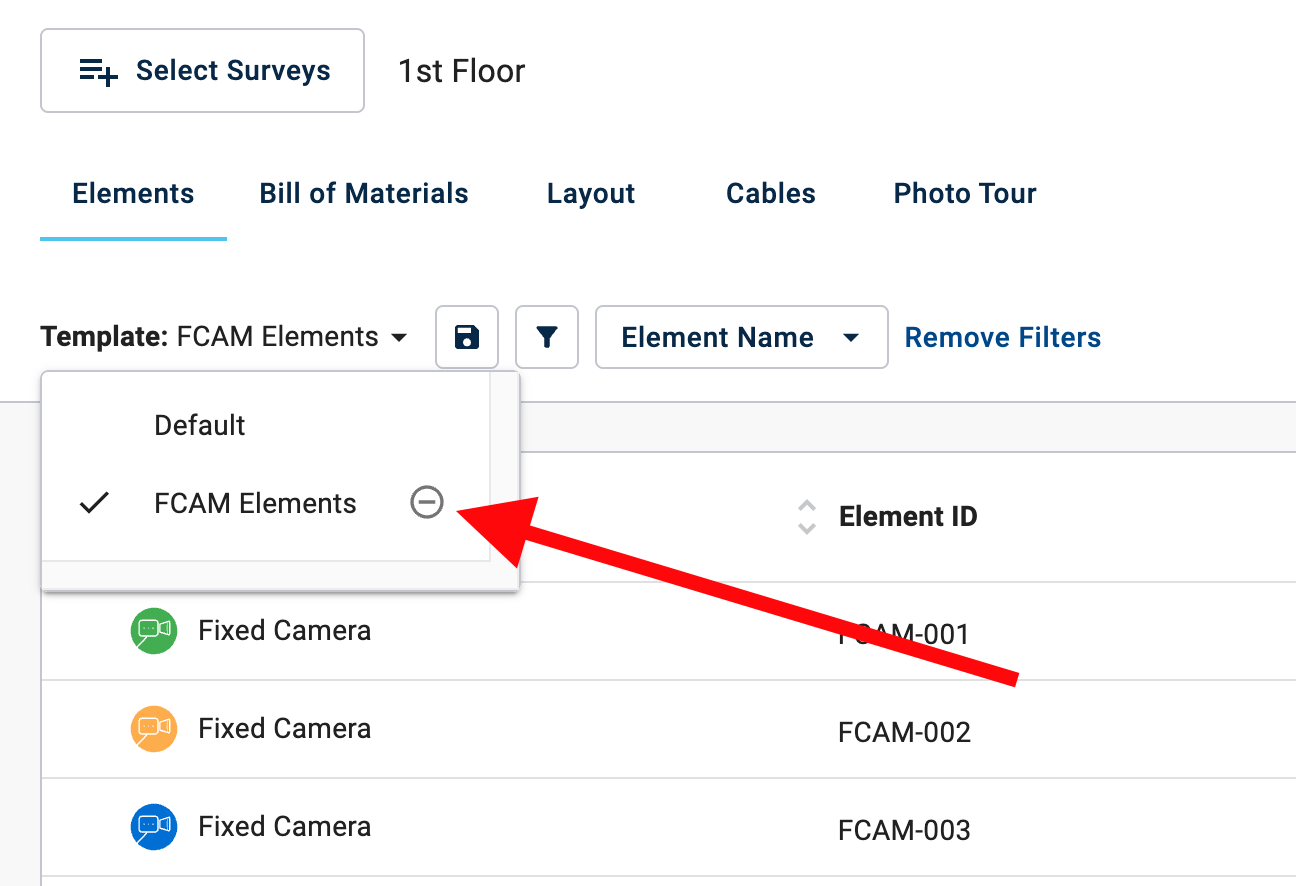
- Click the
Note: Only Admin users can create or delete Templates. Once created, Templates will be available for all users on the Team.