
Jump To:
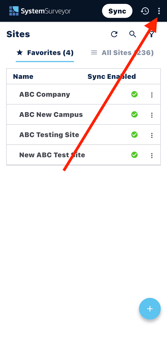
First, tap the Account menu from the Site List:

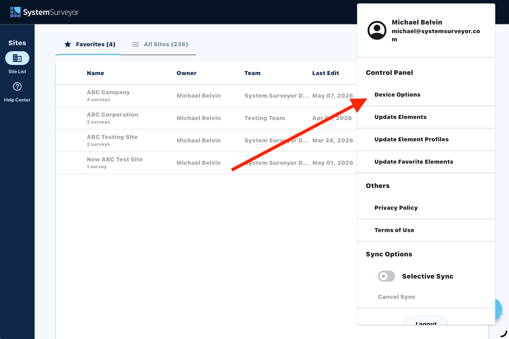
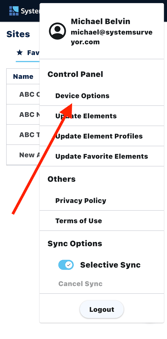
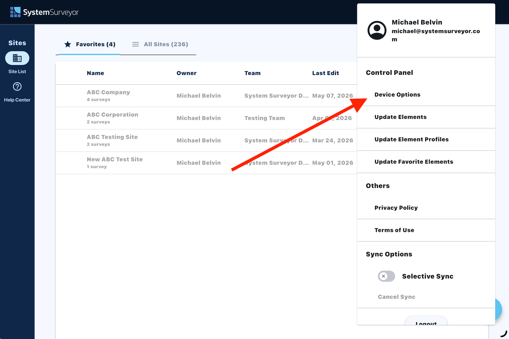
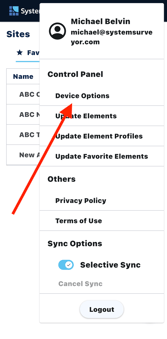
Then, tap Device Options under the Control Panel section:
This will open the Device Options Menu:
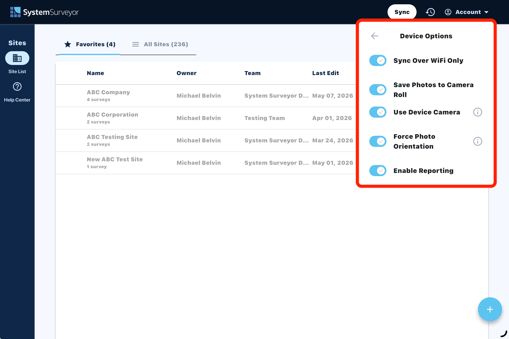
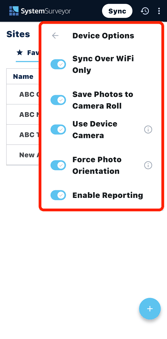
Sync Over WiFi Only
This option will enable your phone or tablet to sync Sites & Surveys only if it is connected to a WiFi network. Syncing over WiFi is what we recommend for best performance.
Save Photos to Camera Roll
This option will allow your phone or tablet to save photos to your camera roll that are captured with the in-app camera. This is a great option that enables users to save a backup of their photos on the device itself.
Use Device Camera
This option will set the default in-app camera to your device's native camera. This can be helpful for enabling additional photo capture settings while taking photos to attach to your Survey Elements, such as enhanced zoom capabilities.
Force Photo Orientation
This option will default photo orientation to the orientation that device was in when the photo was captured. This is helpful for maintaining portrait or landscape shots as they are synced from the mobile app to the web.
Enable Reporting
This option will provide better troubleshooting visibility for the System Surveyor engineering team in the event that you are experiencing syncing issues, or an issue with a particular Site or Survey. Enabling this option is recommended so that the team can assist effectively if needed.
To view additional options, navigate back to the Control Panel:
Update Elements
This feature will update the System Types that are available to choose from on your Team. System Types can be configured on the web by an admin on your Team.
Note: Check out our guide on Changing Available System Types to learn more about updating the System Types on your Team.
Update Element Profiles
This feature will update the Element Profiles that have been added to the Elements on your team. These will typically update automatically, however, this manual option will initiate the update in the event that recent changes have not yet reflected in the Phone App or Tablet App.
Note: Check out our guide on Importing/Exporting Element Profiles for more information on updating Element Profiles from the web.
Update Favorite Elements
This feature will update the Favorite Elements that have been configured on the web for your user so that they can be accessed via the editor on the Phone App or Tablet App.
Note: Check out our guide on Favorite Elements for an overview adding Favorite Elements.